[App Inventor 物聯網應用-藍牙4.0 BLE] Lesson 5 – 讀取DHT22 溫溼度模組資料
App Inventor BLE 元件教學文第五發!本專題要告訴您如何讀取DHT22 溫溼度模組資料的狀態。BLE 與樂高EV3機器人控制元件已經正式發布,請多多使用吧!實際app執行畫面如下圖,先來看執行畫面吧:
Arduino 101 是 Arduino.cc (注意不是 .org) 與 Intel 合作的最新開發板,在美國以外的區域稱為 Genuino 101。
延伸閱讀:
| [Make雜誌國際中文版]Arduino 101 介紹 | Arduino 101 BLE 第一課 LED閃爍 |
硬體架構
- Arduino 101 開發板
- Android 手機
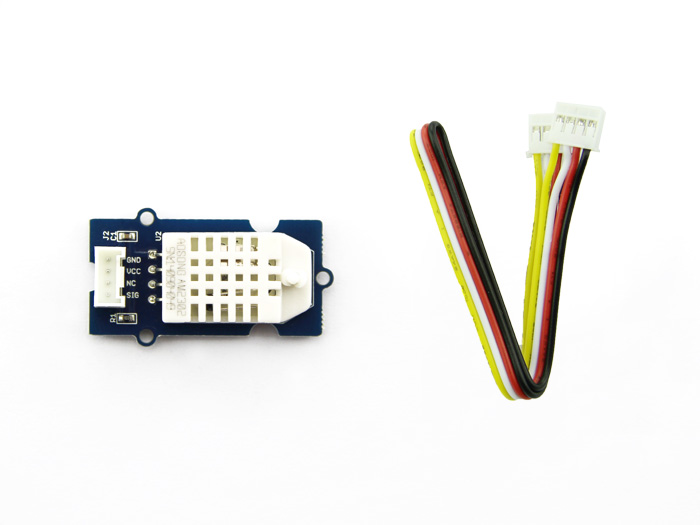
- SeeedStudio 溫溼度感測器,就是一個 DHT22 溫溼度感測模組。由於 MIT App Inventor 是採用 SeeedStudio 的 Grove sensor kit for Arduino 作為主要教學套件,因此本系列專文都會使用其中的套件來製作。

App Inventor 程式
基本上概念與上一篇:[App Inventor 物聯網應用-藍牙4.0 BLE] Lesson 3 – 讀取Arduino 101類比腳位狀態] 完全相同,只是讀取的對象從 Arduino 的 A0 類比腳位改為溫溼度感測器的讀數 元件而已。本範例將不斷讀取溫溼度感測器,並顯示在 App Inventor 畫面對應的 Label 上。請看以下說明
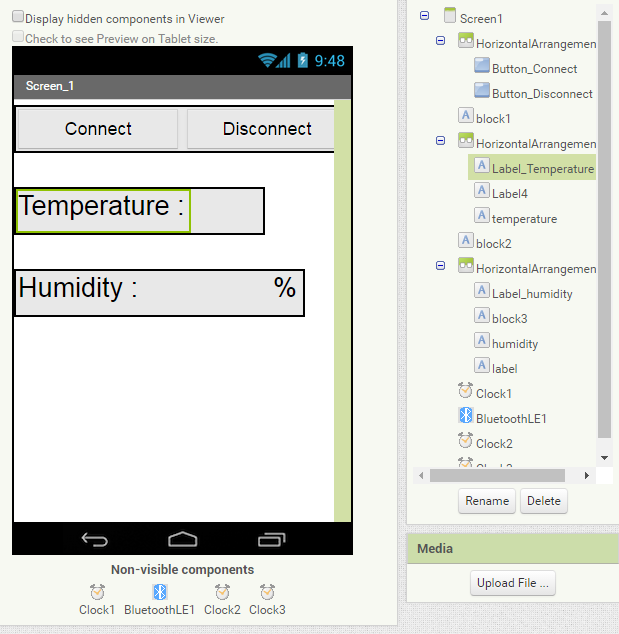
Designer 頁面
本範例只用了 Label 來呈現溫溼度感測器讀數,您可以自由加入不同的視覺元件或是觸發手機上的反應,例如透過 TextToSpeech 元件把感測器值唸出來或是自動寄發 email 等等
本範例一共用到3個 Clock 元件,您可以參考一下這樣的做法,如果有更好的做法也歡迎提出喔。這三個 Clock元件的 TimerInterval 是經過多次測試之後比較好的參數,您可能需要實際狀況來調整這些參數。由於通訊協定的不同,您當然無法用原本的 BluetoothClient元件來與 Arduino 101 溝通。
Blocks 頁面
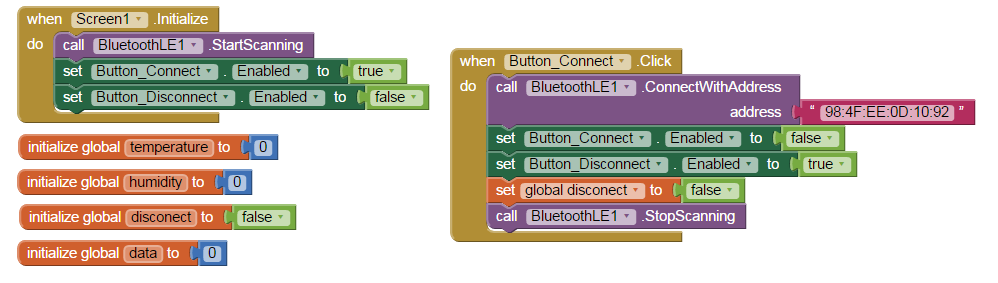
1. 連線與斷線
程式初始化時,要求 BluetoothLE1元件進行掃描。請注意本範例是直接對指定藍牙裝置(Arduino 101)連線。如果您日後需要從多個裝置中選擇的話,建議還是先配對再從 ListPicker 中點選是比較好的做法。請注意 BLE 元件不需要事先配對,只要指定 address 即可直接連線。
Button_Connect 按下時,要求BluetoothLE1元件對指定位址的藍牙裝置(98:4F...) 進行連線,並在設定完畫面上元件的 enabled 屬性之後停止掃描。
2. 連線確認
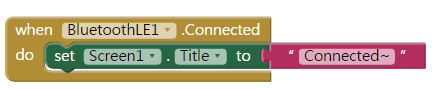
承上一步,BluetoothLE1.connected事件會在連線成功後啟動,我們在此顯示一些確認訊息。Screen的狀態列(title) 很好用,別冷落它囉
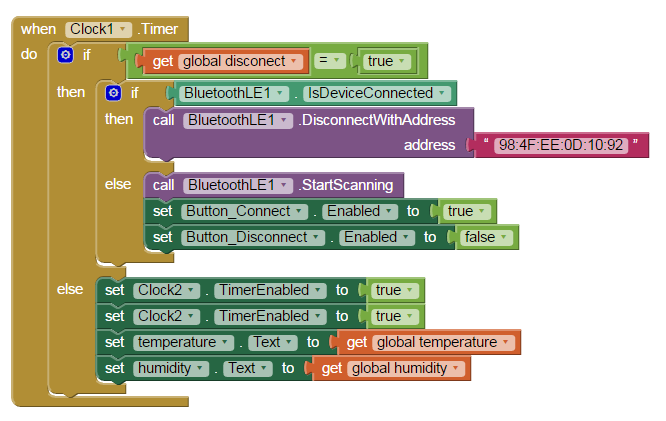
3. Clock1 (每1秒呼叫一次):連續讀取 Arduino 101 回送的資料
本範例使用了3個 Clock元件,請看以下說明:
Clock1 元件首先會根據 disconnect 變數值(true/false) 來得知現在是否有與指定 Arduino 101 連線了。如果為 true,則接續判斷是否有連線,如果在連線狀況下就斷線(BluetoothLE.DisconnectWithAddress)。反之則開始掃描 (BluetoothLE.StartScanning)
如果 disconnect 變數值為 false,則開始進行本範例最重要的變數值組合,但需要先把 Clock2 與 Clock3 兩個計時器事件啟動。並把 temperature 與 humidity 這兩個變數更新在對應的 Label 上就好了,簡單吧?
4. Clock2(每0.9秒呼叫一次):
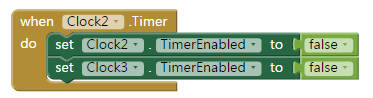
Clock2 會每 0.9 秒把自己與 Clock3 的 Timer事件關閉,接著再根據實際狀況 (就是 disconnect 變數值) 來啟動。
5. Clock3(每0.005秒呼叫一次):控制offset 並組合資料
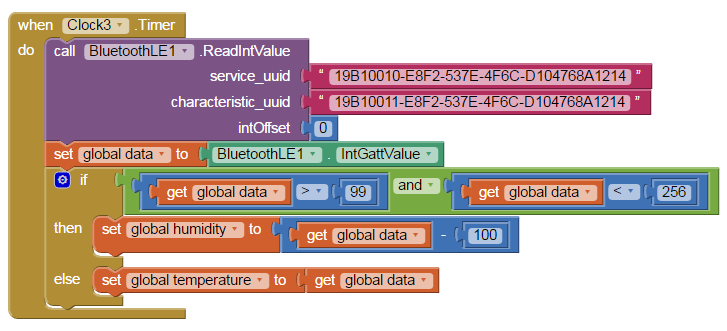
Clock3 首先會執行BluetoothLE.ReadIntValue指令,從 Arduino 101 讀取整數()。接著把 data 變數設為 BluetoothLE.IntGattValue 指令的讀取結果,並根據送過來的資料如果是在99~256 之間的話,代表傳過來的是濕度值,減去 100 之後就是濕度值。反之則是溫度值。
之所以這樣做,是我們在 Arduino 101 端把溫度與濕度的讀取結果,組合成同一個數值之後再丟給 App Inventor,這樣的做法可以降低資料遺失,如以下程式片段:
while (central.connected()) {
      int h = dht.readHumidity();
      int t = dht.readTemperature();
      if (datachoice == 0)
      {
        send_data = h + 100;//send humidity
        datachoise = 1;
      }
      else
      {
        send_data = t; //send temperature
        datachoice = 0;
      }
      DHT22_Data.setValue(send_data);
      Serial.print("Humidity: ");
      Serial.print(h);
      Serial.print(" %\t");
      Serial.print("Temperature: ");
      Serial.print(t);
      Serial.print(" *C ");
      Serial.println();
      delay(50);
    }
請注意 service_uuid 與 characteristic_uuid 這兩個欄位請都填入"19B10011-E8F2-537E-4F6C-D104768A1214",Arduino 101 都使用這個參數代表它所提供的 BLE 服務。
6. 斷線
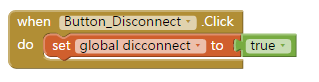
Button_Disconnect按下時,要求BluetoothLE1元件對指定藍牙裝置斷線。在此的做法與先前不太一樣,您可以多多比較喔
Arduino 101 程式碼
本草稿碼請直接複製後上傳至 Arduino 101 即可。請注意 Arduino 101 已經具備藍牙4.0,因此不必再外接 HC05 這類的藍牙裝置
文中一樣要寫明 service_uuid 與 characteristic_uuid,在此都是"19B10011-E8F2-537E-4F6C-D104768A1214"。
#include <CurieBLE.h>
#include "DHT.h"

#define DHTPIN 2

DHT dht(DHTPIN, DHT22);

BLEPeripheral blePeripheral;  // BLE Peripheral Device (the board you're programming)
BLEService HT("19B10010-E8F2-537E-4F6C-D104768A1214"); // BLE Service

// BLE LED Switch Characteristic - custom 128-bit UUID, read and writable by central
BLEUnsignedIntCharacteristic DHT22_Data( "19B10011-E8F2-537E-4F6C-D104768A1214", BLERead | BLENotify);

int datachoise = 0;
int send_data = 0;

void setup() {
  Serial.begin(9600);
  // set advertised local name and service UUID:
  blePeripheral.setLocalName("HT");
  blePeripheral.setAdvertisedServiceUuid(HT.uuid());

  // add service and characteristic:
  blePeripheral.addAttribute(HT);
  blePeripheral.addAttribute(DHT22_Data);

  // begin advertising BLE service:
  blePeripheral.begin();

  Serial.println("BLE Read service start.");
  dht.begin();
}

void loop() {
  // listen for BLE peripherals to connect:
  BLECentral central = blePeripheral.central();
  // if a central is connected to peripheral:
  if (central) {
    Serial.print("Connected to central: ");
    // print the central's MAC address:
    Serial.println(central.address());

    // while the central is still connected to peripheral:
    while (central.connected()) {
      int h = dht.readHumidity();
      int t = dht.readTemperature();
      if (datachoise == 0)
      {
        send_data = h + 100;//send humidity
        datachoise = 1;
      }
      else
      {
        send_data = t; //send temperature
        datachoise = 0;
      }
      DHT22_Data.setValue(send_data);
      Serial.print("Humidity: ");
      Serial.print(h);
      Serial.print(" %\t");
      Serial.print("Temperature: ");
      Serial.print(t);
      Serial.print(" *C ");
      Serial.println();
      delay(50);
    }

    // when the central disconnects, print it out:
    Serial.print(F("Disconnected from central: "));
    Serial.println(central.address());
  }
}本文發表於MIT App Inventor,並標記arduino、ble、bluetooth、MIT App Inventor、物聯網。
留言 💬 (0)
還沒有留言,來當第一個。